Share Pro with
your family.
Use Apple Family Sharing to share your Freezer Inventory Pro purchase with your partner or family members, no need for everyone to buy it separately.
One purchase, shared with your family
Apple Family Sharing lets the person who bought Freezer Inventory Pro share that purchase with up to five other family members. Once everyone has Pro unlocked, you can use Cloud Sync to share your inventory across all devices.
Add your family member to Apple Family
Before you can share the Pro purchase, you need to configure Apple Family Sharing and add the people you want to share with. Apple provides a full guide on how to do this.
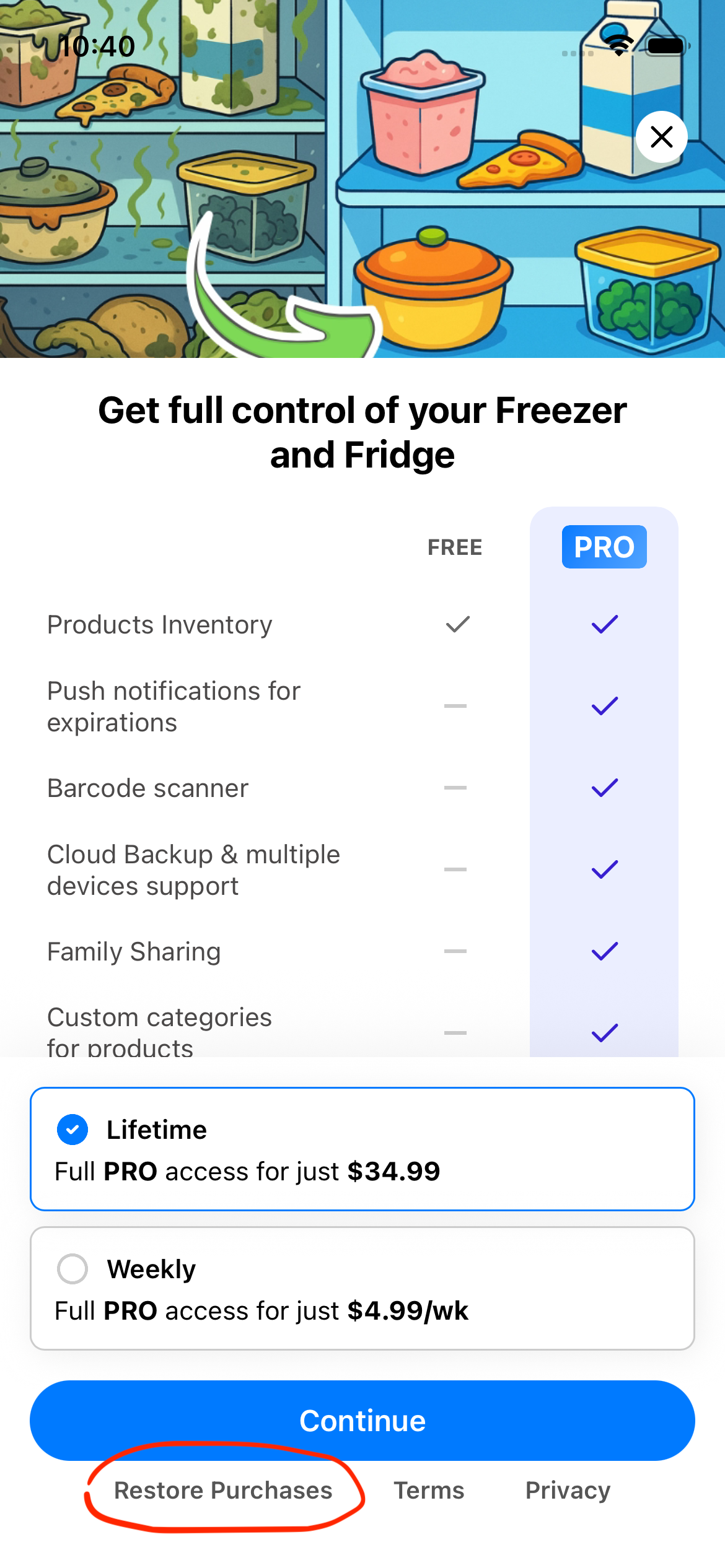
Restore the purchase on the other device
Once Family Sharing is configured, the other family member can unlock Pro on their device without paying again.
Sync your inventory across both devices
Now that both devices have Pro unlocked, you can use Cloud Sync to share your inventory. Every change either person makes will appear on the other device in seconds.