Cloud SyncSync your inventory
Sync your inventory
across every device.
Enable Cloud Sync to keep your freezer and pantry data up to date on all your devices. Changes you make on one device appear on the others in seconds.
01, Overview
What Cloud Sync does
Cloud Sync is a Pro feature that stores your inventories securely in the cloud and keeps them in sync across every device signed in to your account. It also lets you share individual inventories with other people, like a partner or housemate, so everyone sees the same data in real time.
02, Getting started
Enable Cloud Sync on your device
You need a Pro subscription to use Cloud Sync. Once you have Pro, follow these steps on every device you want to keep in sync.
1
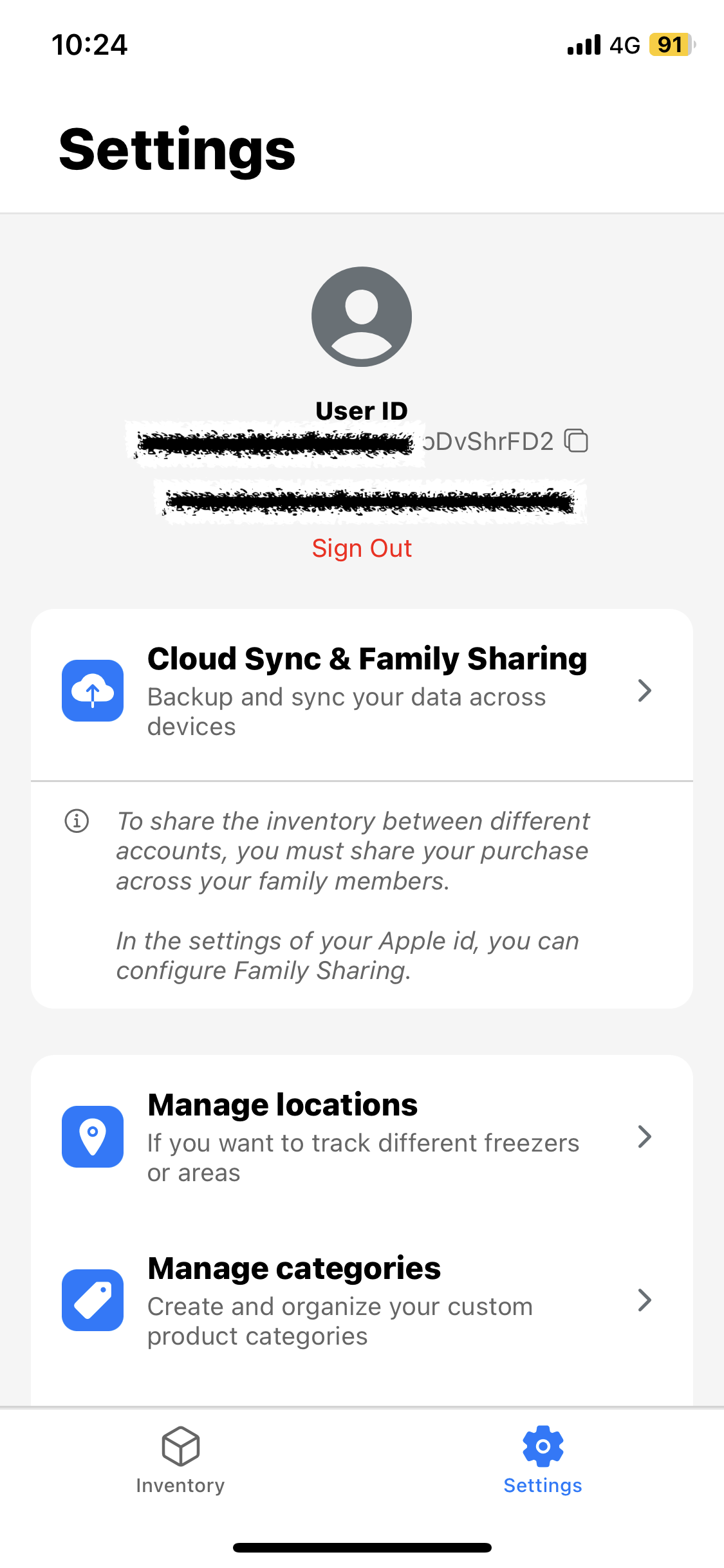
Open Settings in the app
Tap the gear icon in the top-right corner of the main screen to open the Settings panel.
2
Go to Cloud Sync & Family Sharing
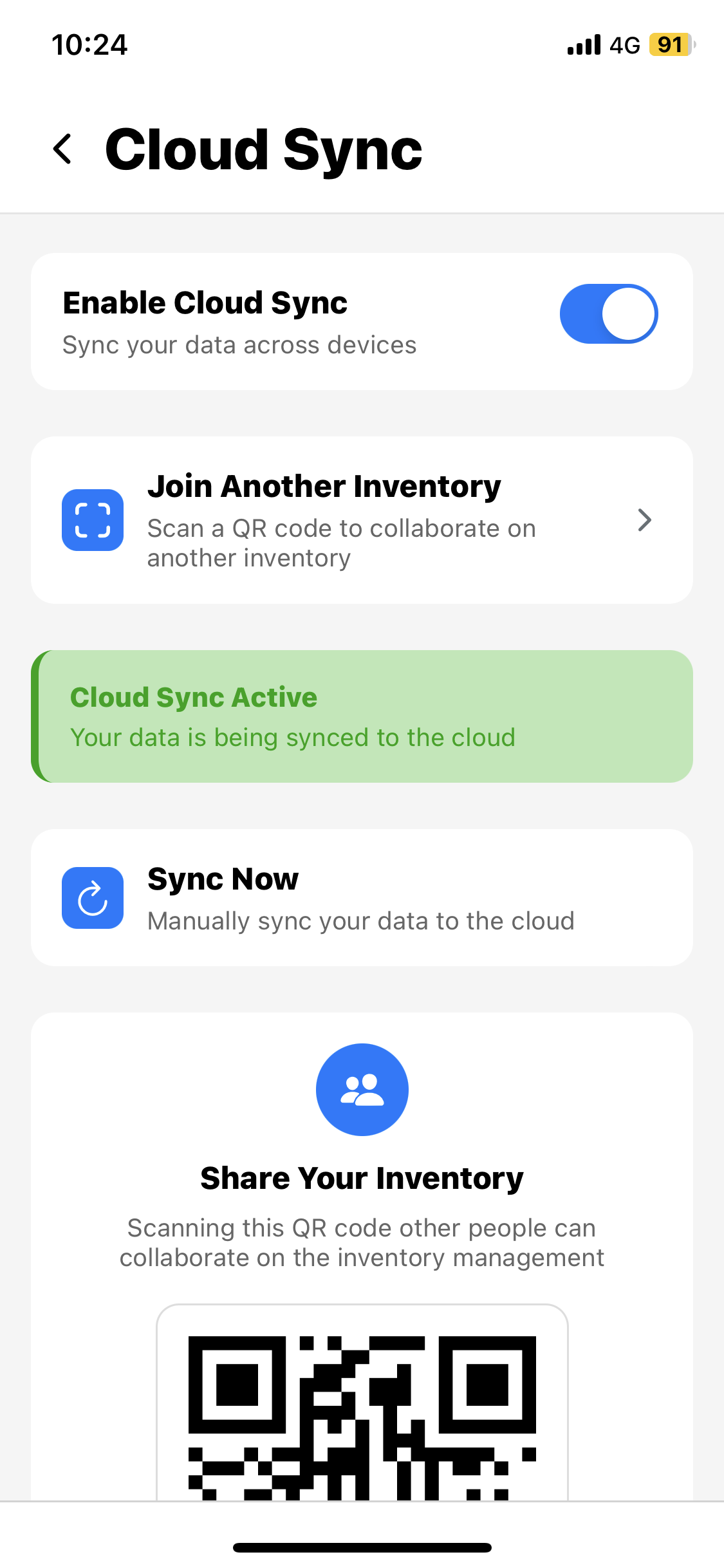
Tap Cloud Sync & Family Sharing section. Enable Cloud Sync.
3
Sign in to your account
Sign in with your account on this device. You must sign in on every device where you want the inventory to be available, sync only works when you are authenticated.
4
Enable Cloud Sync
Once signed in, toggle Cloud Sync on. Your inventory will start syncing to the cloud immediately.
5
Repeat on all other devices
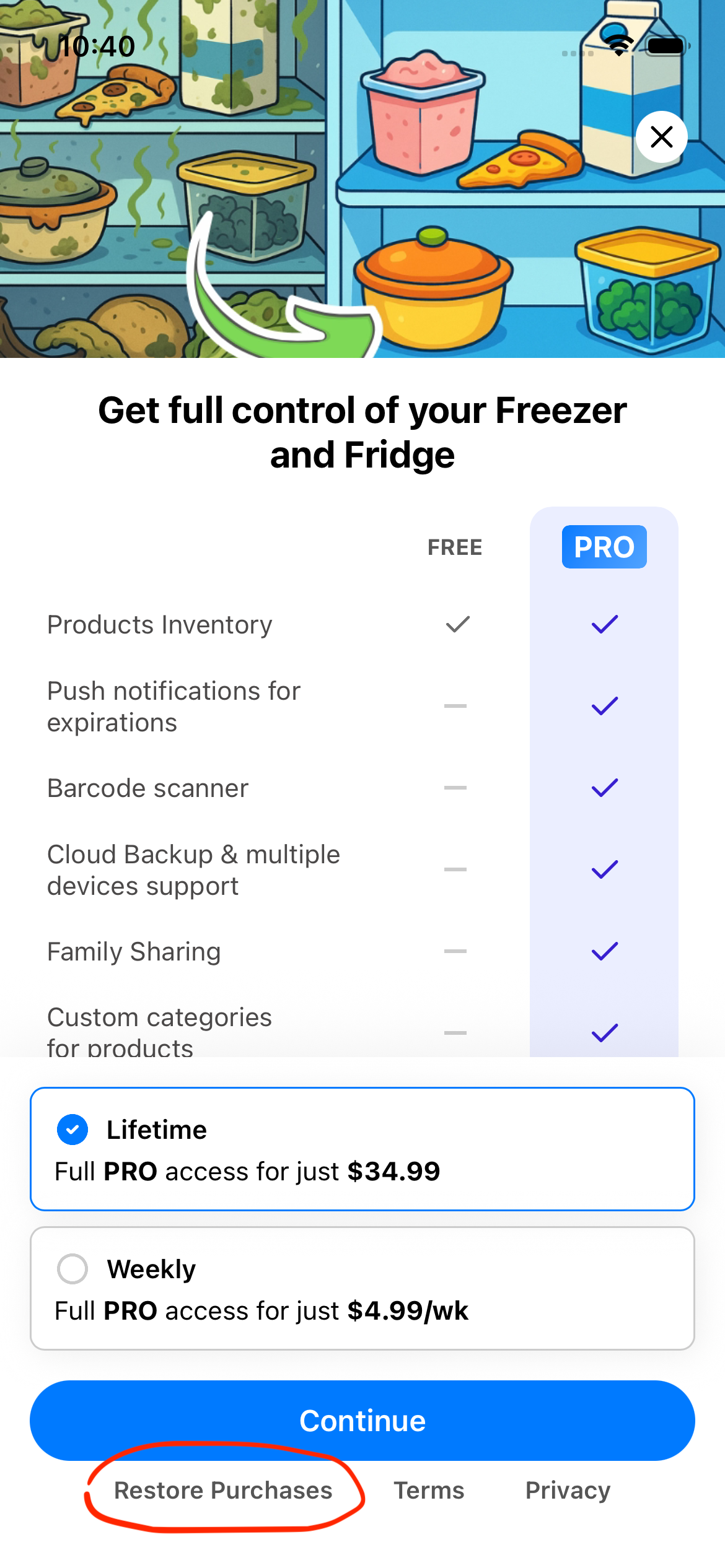
Open the app on your other iPhone or iPad and sign in with the same account. If Pro is not yet active on that device, tap Restore Purchases on the payment screen first.
03, Sharing with others
Share an inventory with someone else
Once Cloud Sync is active you can share any inventory with another person. They will see it on their device and any edit either of you makes will sync instantly.
1
Unlock Pro on every device
Pro must be active on each device that will share the inventory. If the other person already bought Pro, they can simply open the app and tap Restore Purchases on the payment screen. If they haven't purchased yet, see the Family Sharing guide to share your purchase through Apple Family Sharing.
2
Open the inventory you want to share
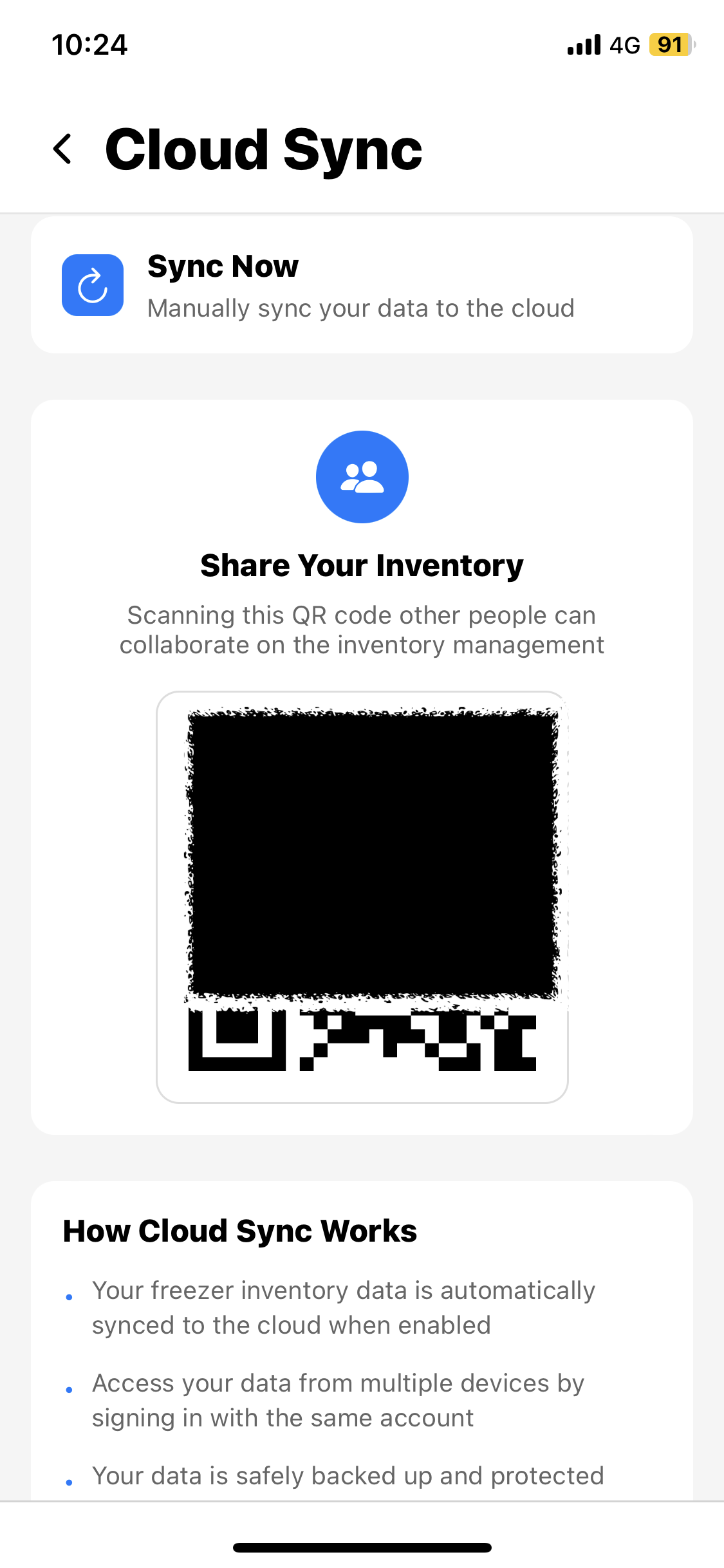
In the Cloud Sync section you will find the option to invite another person. Follow the on-screen instructions and show them the invitation QR code.
3
The other person accepts the invitation
They scan the QR code on their device and the shared inventory appears in their app. From this point on, every change syncs automatically.
Need to share Pro with a family member first? If the other person does not yet have Pro on their device, see the Family Sharing guide to learn how to share your purchase with them through Apple Family Sharing.